

Creating Visual Comparisons with AI

Two paint colors that looked nearly identical in the store suddenly seem worlds apart once they’re actually on the wall. A “small” and “medium” size that need to be seen together to actually understand the size difference. Comparison is one of the most persuasive tools in visual communication, but setting one up properly, with both options shown fairly and consistently, has traditionally required careful staging. An AI image generator makes this dramatically easier, letting two or more distinct options exist side by side under identical conditions.
Dreamina, running on its most advanced image generation model, Seedream 5.0 Pro, is particularly good at this kind of controlled, side-by-side visual work. Here’s how to actually build comparisons that are genuinely fair and genuinely useful.
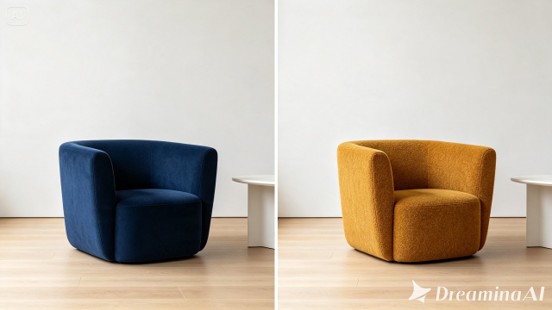
Comparison versus before-and-after: a key distinction
It’s worth separating this technique from a before-and-after, since they solve slightly different problems. A before-and-after tells a story of transformation over time, the same subject changing. A visual comparison, by contrast, presents two or more distinct, simultaneous options, different colors, different sizes, different styles, that a viewer needs to evaluate against each other. Neither option is inherently “before” or “after,” they’re just alternatives being weighed side by side.
The one-variable rule for fair comparisons
The single most important principle in building a useful comparison is changing only one variable at a time. Comparing a product in two different colors is useful. Comparing it in two different colors under two different lighting setups isn’t a fair comparison anymore, it’s just two different photos. Isolating exactly one changing element, color, size, material, style, keeps the comparison meaningful rather than misleading.
Types of comparisons worth building
A few common comparison formats show up constantly across marketing and content work:
– Color or finish variations of the same product
– Size or scale comparisons to communicate proportion
– Style options, such as a modern versus classic version of the same item
– Quality tiers, showing a basic versus premium version side by side
Identifying which type you’re building before generating anything shapes exactly what needs to stay fixed and what needs to change.
Your 3-step comparison build with Dreamina
Once you’ve identified your one variable and comparison type, here’s exactly how to generate it.
Step 1: Write a text prompt and/or add a reference image
Navigate to Dreamina and write a detailed text prompt describing a person dressed appropriately for the context if your comparison includes one, along with the specific item and setting shared across both versions you’re comparing. Upload a reference image if you’re comparing variations of an actual existing product or design.
A solid sample prompt might read: A before-and-after comparison image of a car that is rusty and the same car with clean modern lines upholstered in deep navy blue velvet, positioned in a minimalist studio setting, soft even studio lighting, clean product comparison composition.
Once this first version looks right, you’ll reuse the identical setting and lighting language while changing only your one comparison variable for the second image.
Step 2: Adjust parameters and generate
Before generating, set your parameters, and keep them completely identical across every version in the comparison. Choose Image 5.0 Pro, powered by Seedream 5.0 Pro, as your model, then select your aspect ratio, image size, and resolution, using the exact same settings for each version so the comparison stays visually fair, and 2K resolution to keep detail consistent throughout. Click Dreamina’s generate icon for each version, one at a time.
Step 3: Customize and download
Once each version generates, use Dreamina’s AI customization tools to align them further — inpaint to correct any inconsistency between versions that shouldn’t be there, expand to match framing if one image needs slight adjustment, remove to eliminate anything that breaks the fair comparison, and retouch to balance lighting so both versions feel genuinely equivalent. When each version reads as a fair, consistent comparison, click the Download icon to save them.
Meet Seedream 5.0 Pro: consistency built for side-by-side work
A handful of Seedream 5.0 Pro’s specific capabilities matter significantly for producing genuinely fair, consistent comparisons.
Multi-layer visual control for isolated variable changes
Multi-layer visual control separates the subject, its specific attributes, and the background into independent components, making it genuinely practical to change one variable, like color or material, while keeping everything else about the composition locked in place.
Pinpoint precision editing for matching details
With point selection, lasso, sketch guidance, and regional controls, pinpoint precision editing lets you correct small inconsistencies between comparison versions that would otherwise undermine the fairness of the comparison.
Deep reasoning generation for structural consistency
Deep reasoning generation analyzes your prompt’s relationships and intent before producing an image, helping the underlying structure and proportions stay consistent even as your one chosen variable changes between versions.
2K output for detail-level accuracy
Since comparisons often live or die on small details being visible and accurate, 2K output quality ensures both versions hold up to close, side-by-side scrutiny.
Laying out the final comparison
Once both versions are ready, presentation matters. A clean side-by-side layout with matching proportions, consistent labeling, and equal visual weight given to each option keeps the comparison feeling balanced and trustworthy. Avoiding any layout choice, like making one image larger or brighter than the other, that subtly favors one option over the other preserves the comparison’s actual usefulness.
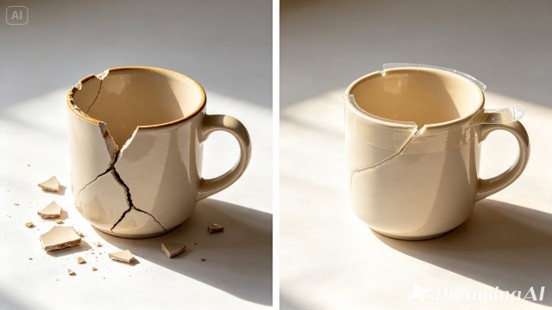
Where visual comparisons genuinely help
This kind of side-by-side visual format shows up constantly across practical decision-making contexts:
– E-commerce product pages showing color or size variants
– Design mood boards weighing style directions against each other
– Marketing content helping customers choose between options
– Internal presentations comparing creative directions before a final decision
Final thoughts
A genuinely fair, useful comparison depends on isolating exactly one changing variable and keeping everything else identical, and the right AI image generator makes that discipline far easier to execute consistently.
With Dreamina and its advanced Seedream 5.0 Pro model, two or more options can be generated side by side under matched conditions, giving viewers a comparison they can actually trust.
Isolate your one variable, keep every other setting locked, and let Dreamina build a comparison that genuinely helps people decide.
